Enable Codex App Plugins with XAI Router
Posted May 9, 2026 by XAI Tech Team ‐ 5 min read
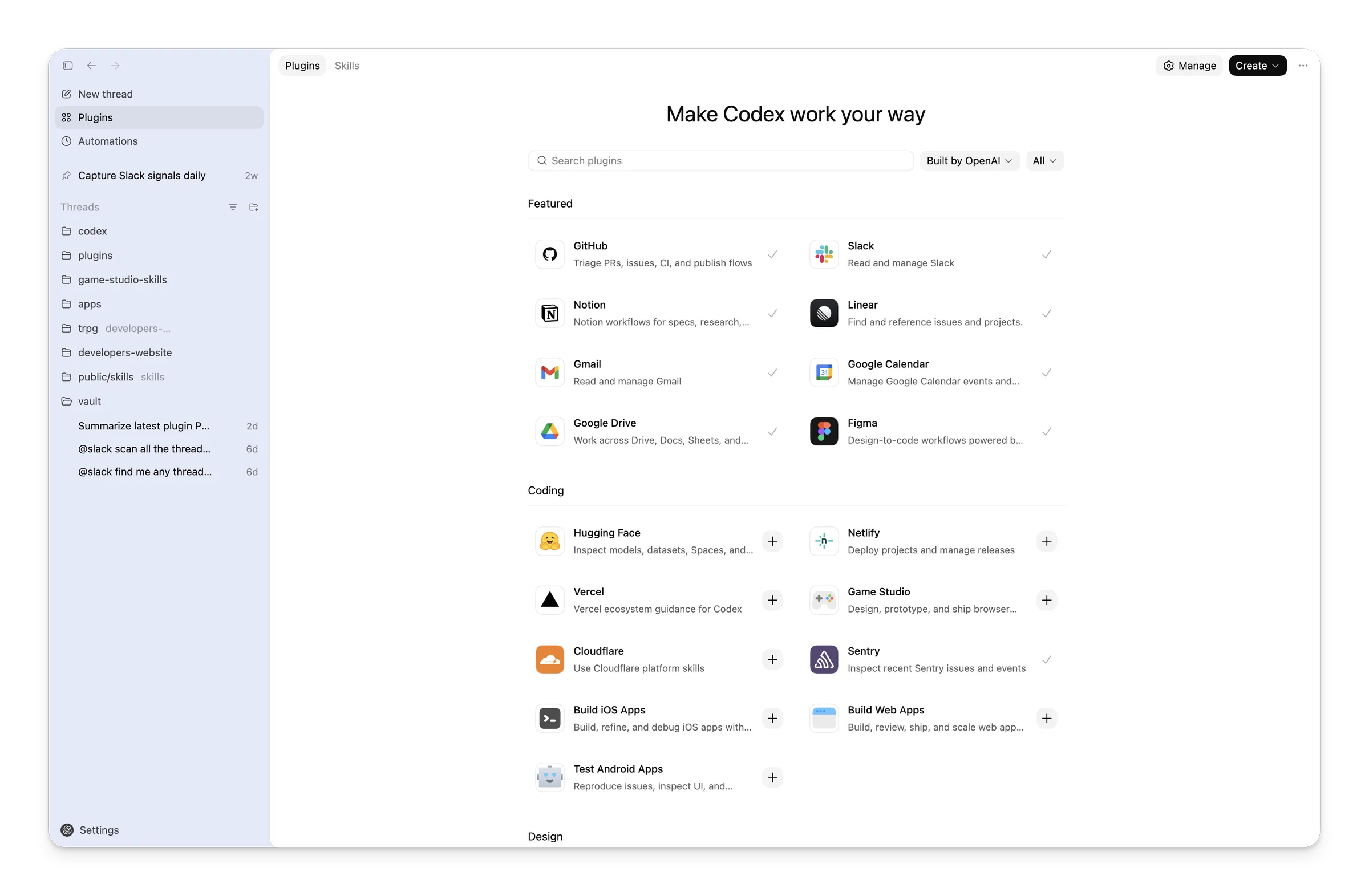
Some users can use Codex App with XAI Router successfully, but the Codex Apps / Plugins page is still greyed out and the plugin directory cannot be opened.
The key point is simple: the Codex plugin page needs an official ChatGPT/Codex login state. Whether the model API works is a separate question. The simplest and most reliable setup is:
- Log in to Codex with an official OpenAI / ChatGPT account.
- Configure model requests to use XAI Router.
- Do not point the plugin backend URL to your model proxy.
With this setup, the plugin page can open normally, while day-to-day model requests continue to use your XAI Router Codex plan.
The Short Version
For most users, use this split:
Codex plugin page: official Codex / ChatGPT login state
Codex model requests: XAI Router API
Login and model API are two different things:
- Official login state unlocks Codex Apps, Plugins, remote plugin directories, and related backend features.
- XAI Router API Key handles actual model calls, routing, billing, and plan usage.
Do not mix these two concerns into the same auth.json.
Why the Plugin Page Is Greyed Out
The Codex plugin page does not only check whether you have a model API key. It checks whether the current Codex auth state is an official ChatGPT/Codex backend login.
If you only configure a regular API key, for example:
sk-Xvs...model requests can work, but the Codex client may still treat you as not using official ChatGPT/Codex backend auth. In that case, Apps / Plugins can remain disabled.
This is why the experience can feel confusing:
Codex can answer and edit code, so why are plugins still greyed out?
Because a working model request does not mean the plugin backend is enabled.
The Correct Request Flow
Recommended flow:
Plugin directory / Apps page
Codex App -> official ChatGPT backend

Model requests
Codex App -> XAI Router -> upstream Codex model service
This gives you four practical benefits:
- The plugin page is unlocked by the official login state.
- Model calls continue to go through XAI Router.
- Users do not need to understand backend-api proxy details.
- You do not need to modify local proxy services just to open the plugin page.
Step 1: Log In to Codex App with an Official Account
The Codex App plugin page depends on the official login state inside the App. In Codex App, sign out of the current login method, then sign in again with your official OpenAI / ChatGPT account.
After that, Codex App keeps the local official login state used to open Apps / Plugins.
Do not use your XAI Router key as the Codex App login credential. In other words, do not put sk-Xvs... into ~/.codex/auth.json, or Codex may enter API key auth mode. Model requests can still work, but the plugin page may remain disabled.
Remember this rule:
Use an official account for Codex App login.
Put the XAI Router key in the model provider config.
Step 2: Configure the XAI Router Model Provider
Open or create:
~/.codex/config.tomlRecommended config:
model_provider = "xai"
model = "gpt-6-astra"
model_reasoning_effort = "xhigh"
plan_mode_reasoning_effort = "xhigh"
model_reasoning_summary = "none"
model_context_window = 1050000
model_auto_compact_token_limit = 945000
approval_policy = "never"
sandbox_mode = "danger-full-access"
service_tier = "fast"
suppress_unstable_features_warning = true

[model_providers.xai]
name = "OpenAI"
base_url = "https://api.xairouter.com"
experimental_bearer_token = "sk-Xvs..."
wire_api = "responses"
requires_openai_auth = false
supports_websockets = true
http_headers = { "x-codex-routing-hint" = "model=gpt-6-astra" }

[features]
goals = true
multi_agent = true
Replace sk-Xvs... with the API Key copied from your XAI Router dashboard. Then restart Codex App.
The provider's supports_websockets = true setting enables WS. The static x-codex-routing-hint gives a custom API-key provider a routing hint that the router synchronizes with the final model and current request service tier before forwarding.
Why We Recommend experimental_bearer_token
For regular users, experimental_bearer_token keeps setup simple. You do not need to understand shell profiles, environment variables, .zshrc, .bashrc, or whether Codex App can read terminal environment variables.
You only need to remember:
Codex App official login state goes into auth.json.
XAI Router Key goes into config.toml as experimental_bearer_token.
Note: experimental_bearer_token is stored in plaintext in ~/.codex/config.toml. Do not upload this file to a public repository, and do not share screenshots that expose the full key.
FAQ
1. Codex can already write code. Why are plugins still greyed out?
Because working model requests only prove that the model API is available. The plugin page still needs an official ChatGPT/Codex login state.
If you previously logged in with an API key, Codex App may still be in API key auth mode. Sign out in the App, then log in again with your official OpenAI / ChatGPT account. This lets ~/.codex/auth.json store the official login state used to enable the plugin page.
If the official account reports limited or insufficient default model quota, that does not mean XAI Router cannot be used. As long as the provider config above is active, actual model requests will still go through XAI Router.
2. Will plugin requests consume my XAI Router Codex plan?
Browsing and installing plugins mainly depend on the official login state. When Codex actually executes tasks and calls models, those model requests follow your XAI Router provider configuration and go through XAI Router.
Final Checklist
If you want Codex plugins enabled while model requests go through XAI Router, do this:
- Log in with your official OpenAI / ChatGPT account and keep the official login state.
- Configure the XAI Router provider in
~/.codex/config.toml. You can copy the recommended config from the XAI Router dashboard.
If you do not have an XAI Router Codex plan yet, visit m.xairouter.com to register and activate a Codex plan. After activation, copy your API Key and use the config in this guide to route Codex model requests through XAI Router.