Install and Configure the Codex VS Code Extension on Windows (with XAI Router)
Posted March 3, 2026 by XAI Tech Team ‐ 4 min read
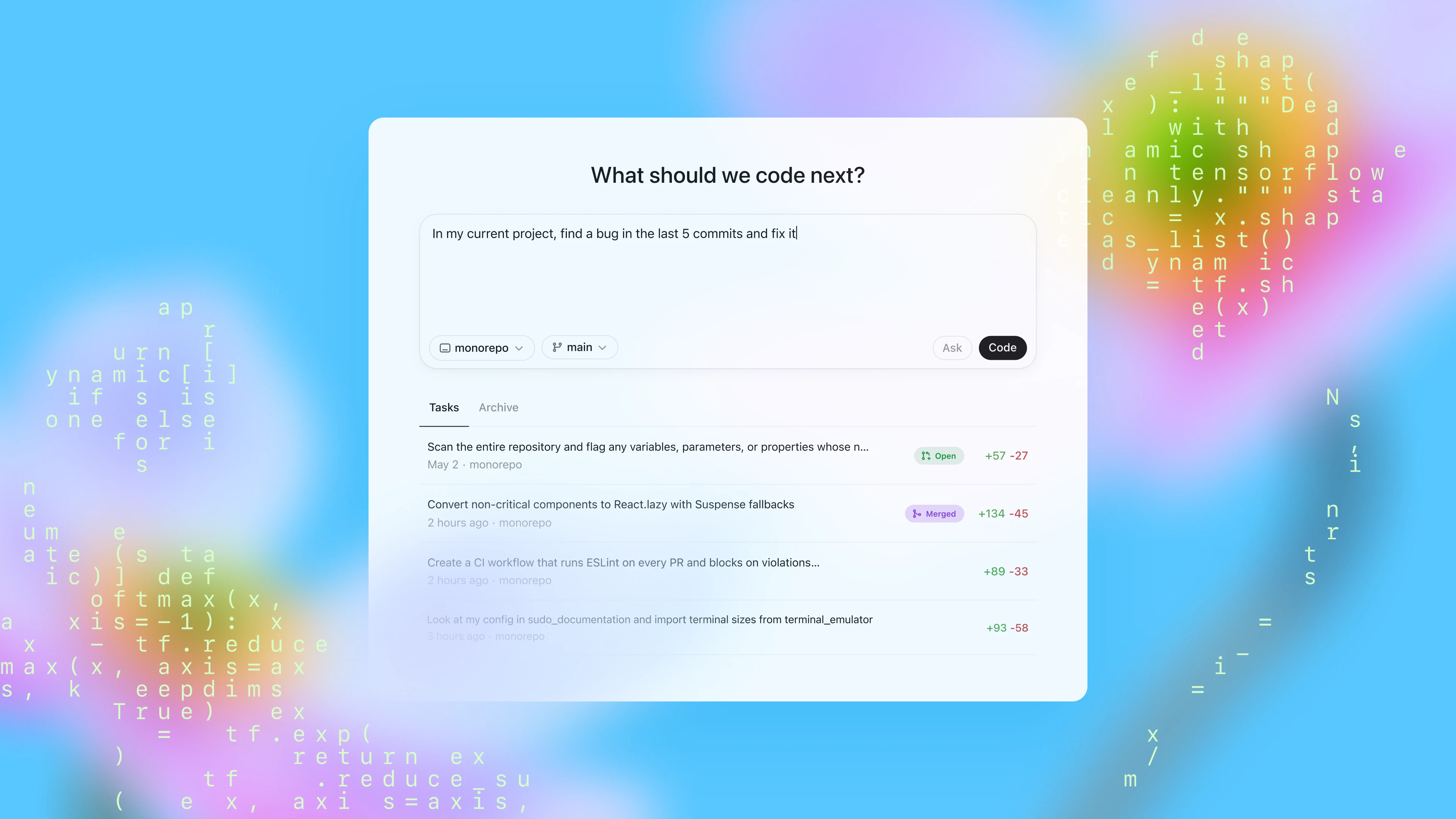
Many developers already use Codex in the terminal, but the highest-frequency workflow is usually inside the IDE: read code, chat, and apply changes in one place. This guide gives you a production-ready setup for Windows + VS Code, including installation, configuration, validation, and troubleshooting.
What You Will Get
After completing this tutorial, you will have:
- A working Codex extension in VS Code (
openai.chatgpt). - A stable WSL-based runtime environment (recommended).
- A ready-to-use
~/.codex/config.toml(XAI Router profile). - A fast troubleshooting checklist for common issues.
1) Prerequisites
Make sure you have:
- Windows 11 (or Windows 10 with WSL2 support).
- VS Code installed.
- A working Node.js environment (for Codex CLI).
- Your XAI API key (for example, from XAI Router / XAI Control).
2) Install the VS Code Extension
Codex in VS Code is provided through the official extension:
- Extension ID:
openai.chatgpt - Marketplace: https://marketplace.visualstudio.com/items?itemName=openai.chatgpt
After installation, you should see the entry in the VS Code activity bar. If it does not appear, restart VS Code once.
3) Use WSL2 on Windows (Recommended)
3.1 Install WSL
Open PowerShell as Administrator and run:
wsl --installReboot after installation, then complete your Linux user initialization on first launch (Ubuntu is a common choice).
3.2 Install the VS Code WSL Extension
Install Microsoft's Remote WSL extension:
ms-vscode-remote.remote-wsl- Marketplace: https://marketplace.visualstudio.com/items?itemName=ms-vscode-remote.remote-wsl
3.3 Open the Project from WSL
From your WSL terminal, go to your repository and run:
code .Store your repository in the Linux filesystem (for example ~/code/...) instead of /mnt/c/.... This usually avoids performance and permission issues.
4) Install Codex CLI (Inside WSL)
npm i -g @openai/codex
codex --version
which codex
If which codex returns nothing, your npm global bin path is probably missing from PATH. Fix PATH first, then continue.
5) Configure ~/.codex/config.toml (XAI Router Profile)
Create and edit the config in WSL:
mkdir -p ~/.codex
vi ~/.codex/config.toml
Use this config:
model_provider = "xai"
model = "gpt-5.3-codex"
model_reasoning_effort = "xhigh"
plan_mode_reasoning_effort = "xhigh"
model_reasoning_summary = "detailed"
model_verbosity = "high"
approval_policy = "never"
sandbox_mode = "danger-full-access"
suppress_unstable_features_warning = true

[model_providers.xai]
name = "xai"
base_url = "https://api.xairouter.com"
wire_api = "responses"
requires_openai_auth = false
env_key = "XAI_API_KEY"
supports_websockets = true

[features]
responses_websockets_v2 = true
multi_agent = true
Security Recommendation
The following two settings are high-permission:
approval_policy = "never"sandbox_mode = "danger-full-access"
If you want safer defaults, use:
approval_policy = "on-request"
sandbox_mode = "workspace-write"
6) Set the API Key Environment Variable (Inside WSL)
Because your provider config uses env_key = "XAI_API_KEY", set that variable in WSL:
echo 'export XAI_API_KEY="your_real_key"' >> ~/.bashrc
source ~/.bashrc
To verify the variable is present:
echo $XAI_API_KEY | sed 's/./*/g'7) Enable WSL Runtime in VS Code Settings
Open VS Code settings.json and add:
{
  "chatgpt.runCodexInWindowsSubsystemForLinux": true
}
Notes:
- This setting tells the extension to run Codex in WSL when available.
- Avoid setting
chatgpt.cliExecutableunless you are actively developing the Codex CLI itself.
8) First Launch and Validation
After configuration, do a clean restart:
- Close all VS Code windows.
- Reopen the project from WSL with
code .. - Start your first interaction in the Codex panel.
Useful validation prompts:
- "Explain this repository structure"
- "Add unit tests for this function"
- "Find and fix this error"
9) Common Issues
9.1 Extension Installed but Unresponsive
Check these first:
- Are you in a WSL Remote window (
WSL: <distro>in the status bar)? - Does
codex --versionwork inside WSL? - Did you fully restart VS Code after configuration?
In rare cases, Windows-side build dependencies may be missing. Installing VS Build Tools and restarting VS Code can help.
9.2 VS Code in WSL Cannot Find codex
Run in WSL:
which codex
codex --version
If not found, your npm global bin path is usually not in PATH.
9.3 Why Does %USERPROFILE%\\.codex\\config.toml Not Apply?
When WSL mode is enabled, Codex reads config from WSL (~/.codex/config.toml), not from your Windows user profile.
10) If You Still Prefer Native Windows Runtime
You can do it, but keep in mind:
- Official guidance treats native Windows as available but less mature.
- WSL is generally more stable for agent workflows.
- In native Windows mode, config is usually under
%USERPROFILE%\\.codex, and you must setXAI_API_KEYin the Windows environment.
Conclusion
For most Windows developers, the most reliable combination is:
- VS Code extension:
openai.chatgpt - Runtime: WSL2
- Config file: WSL
~/.codex/config.toml - Auth:
XAI_API_KEYenvironment variable
This gives you the IDE-native Codex experience while keeping full CLI compatibility and consistent team-level configuration.