VS Code Codex Extension Setup Guide (Windows / macOS, with XAI Router)
Posted March 3, 2026 by XAI Tech Team ‐ 8 min read
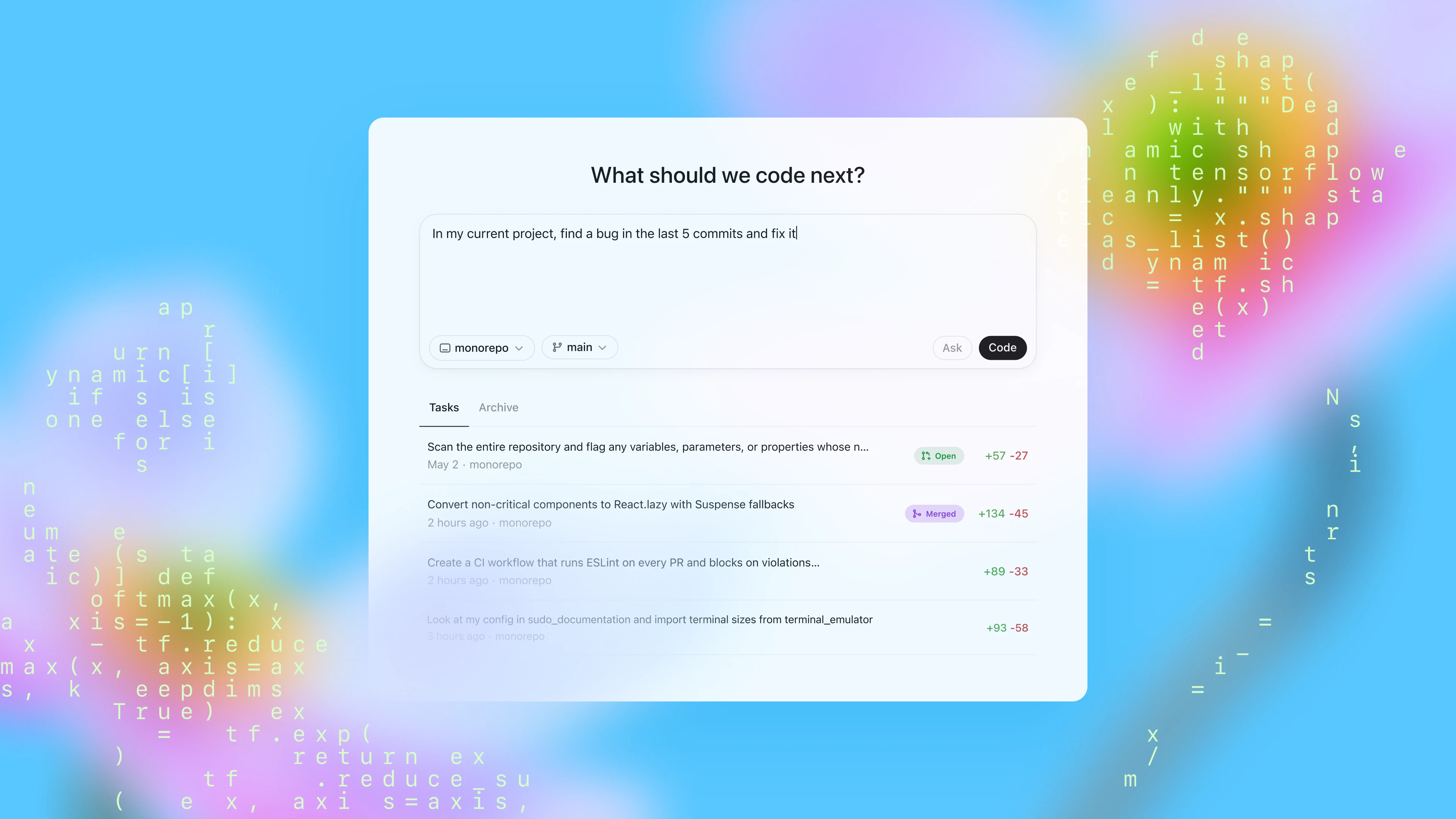
This guide is for developers using Codex in VS Code. It covers macOS, Windows + WSL, and Windows Native as separate runtime paths.
Quick Answer
| Item | macOS | Windows + WSL (Recommended) | Windows Native (Supplementary) |
|---|---|---|---|
| VS Code extension | openai.chatgpt | openai.chatgpt | openai.chatgpt |
| Actual Codex runtime | Native macOS | WSL2 | Native Windows |
| User-level config file | ~/.codex/config.toml | ~/.codex/config.toml inside WSL | %USERPROFILE%\.codex\config.toml |
| API key location | ~/.zshrc / ~/.bashrc | ~/.bashrc / ~/.zshrc inside WSL | PowerShell / Windows user environment |
| Important VS Code setting | Usually none | chatgpt.runCodexInWindowsSubsystemForLinux = true | Usually keep default |
chatgpt.cliExecutable | Do not set for normal use | Do not set for normal use | Do not set for normal use |
Core rules:
- VS Code settings decide where Codex runs.
config.tomldecides how Codex behaves.- Once Windows is switched to WSL mode, the active config is no longer
%USERPROFILE%\.codex, but WSL's own~/.codex.
1) First, Separate VS Code Settings from Codex Settings
Start by separating the two config layers.
VS Code settings control the runtime location
These live in VS Code settings.json, for example:
chatgpt.runCodexInWindowsSubsystemForLinuxchatgpt.cliExecutable
The second one usually does not need to change. chatgpt.cliExecutable is better treated as a custom CLI path / debugging setting, not as a required day-to-day configuration step for normal users.
config.toml controls the agent behavior
These settings belong in config.toml:
model_providermodelapproval_policysandbox_modemodel_providers.*features.*
That is why most important Codex behavior is not configured in VS Code itself, but in Codex's shared configuration system.
2) Install the Common Pieces First
Install the VS Code extension
Official extension:
- Extension ID:
openai.chatgpt - Marketplace: https://marketplace.visualstudio.com/items?itemName=openai.chatgpt
- Official IDE docs: https://developers.openai.com/codex/ide
If your goal is just to use Codex inside VS Code, start with the extension.
Install Codex CLI only if you also want terminal usage
This is optional, not a hard prerequisite for this editor-focused guide.
- macOS: install via Homebrew or npm
- Windows: the open-source CLI docs still point developers toward WSL2 as the main path
Typical examples:
# macOS
brew install --cask codex

# Linux / WSL
npm install -g @openai/codex
3) Start from a Shared config.toml Example (XAI Router)
If you use XAI Router, this is a practical starting point:
model_provider = "xai"
model = "gpt-5.4"
model_reasoning_effort = "xhigh"
plan_mode_reasoning_effort = "xhigh"
model_reasoning_summary = "detailed"
model_verbosity = "high"
approval_policy = "on-request"
sandbox_mode = "workspace-write"

[model_providers.xai]
name = "xai"
base_url = "https://api.xairouter.com"
wire_api = "responses"
requires_openai_auth = false
env_key = "XAI_API_KEY"

[features]
multi_agent = true
This example does four things:
- Use
xaias the default provider - Use
gpt-5.4as the default model - Skip OpenAI-managed auth and read credentials from
XAI_API_KEY - Use the safer interactive permission combination:
on-request + workspace-write
If you want the smallest working config
You can remove the entire [features] section first and get the base flow working before adding extra features back later.
If you want higher permissions
Some power users prefer:
approval_policy = "never"
sandbox_mode = "danger-full-access"
That is faster, but also more permissive. For shared machines, production repositories, or cautious day-to-day usage, on-request + workspace-write is still the better default.
4) Where to Put Shared Team Config
Codex supports more than just the user-level ~/.codex/config.toml. It also supports project-level .codex/config.toml.
A practical split is:
- User-level
config.toml: provider, default model, personal preferences - Repo-level
.codex/config.toml: project-specific overrides such as MCP, rules, or per-repo defaults
This is especially important on Windows + WSL:
- If the repo is opened from WSL, use the WSL view of the repo
- If the repo is opened natively from Windows, use the Windows view of the repo
In short: project-level config follows the runtime environment too.
5) macOS Setup Details
For macOS, the cleanest path is simply native local runtime.
1. Create and edit config.toml
mkdir -p ~/.codex
vi ~/.codex/config.toml
Paste the XAI Router config from the previous section.
2. Set XAI_API_KEY
On modern macOS, zsh is usually the default shell, so write to ~/.zshrc first:
echo 'export XAI_API_KEY="your_real_key"' >> ~/.zshrc
source ~/.zshrc
If you use bash instead:
echo 'export XAI_API_KEY="your_real_key"' >> ~/.bashrc
source ~/.bashrc
3. You usually do not need extra VS Code settings
On macOS, you typically do not need to change settings.json for Codex.
Avoid touching this unless you are doing development work on Codex itself:
chatgpt.cliExecutable
4. If you also want terminal CLI usage
Install the CLI separately:
brew install --cask codex
codex --version
which codex
5. Restart VS Code and validate
After configuration, restart VS Code and try prompts like:
- "Explain this repository structure"
- "Add tests for this function"
- "Find and fix this error"
If those work, your macOS setup is usually complete.
6) Windows Setup Details (Recommended: WSL)
On Windows, the most important decision is not the model config itself. It is this:
Are you running Codex in WSL or not?
For most developers, the recommended answer is yes.
1. Install WSL and the VS Code WSL extension
Run in Administrator PowerShell:
wsl --installThen install the VS Code extension:
ms-vscode-remote.remote-wsl- Marketplace: https://marketplace.visualstudio.com/items?itemName=ms-vscode-remote.remote-wsl
2. Open the repo from WSL
From a WSL terminal:
code .Whenever possible, keep the repo inside the Linux filesystem, such as:
~/code/my-projectinstead of using:
/mnt/c/Users/...This is usually more stable and better aligned with Linux tooling.
3. Enable the WSL runtime setting in VS Code
Add this to VS Code settings.json:
{
  "chatgpt.runCodexInWindowsSubsystemForLinux": true
}
This setting does three important things conceptually:
- It tells the extension to run Codex in WSL
- Once enabled, the config you should edit is the WSL
~/.codex/config.toml %USERPROFILE%\.codex\config.tomlis no longer your primary config entry point
4. Create and edit config.toml inside WSL
mkdir -p ~/.codex
vi ~/.codex/config.toml
Paste the config into this WSL-side file.
5. Set XAI_API_KEY inside WSL
If your WSL shell is bash:
echo 'export XAI_API_KEY="your_real_key"' >> ~/.bashrc
source ~/.bashrc
If you use zsh, write to ~/.zshrc instead.
6. Install Codex CLI inside WSL only if you also want terminal usage
This remains optional for an extension-only workflow:
npm install -g @openai/codex
codex --version
which codex
7. Fully restart VS Code and test again
Do a clean restart sequence:
- Close all VS Code windows
- Reopen the repo from WSL with
code . - Confirm the status bar shows
WSL: <your distro> - Start your first Codex request
If things still do not work, first verify that you are actually in a WSL Remote window before debugging model/provider settings.
7) Windows Native Details (Only If You Intentionally Avoid WSL)
If you explicitly want Codex to run in native Windows rather than WSL, the configuration logic is still straightforward.
1. User-level config file location
Edit:
%USERPROFILE%\.codex\config.tomlFor example:
C:\Users\Alice\.codex\config.tomlCreate and open it from PowerShell:
New-Item -ItemType Directory -Force $HOME\.codex
notepad $HOME\.codex\config.toml
2. Put the API key in the Windows environment
Current PowerShell session:
$env:XAI_API_KEY = "your_real_key"Persist for your user:
setx XAI_API_KEY "your_real_key"Reopen PowerShell / VS Code after that.
3. Do not enable the WSL runtime setting
If you are intentionally using Windows Native, do not turn on:
{
  "chatgpt.runCodexInWindowsSubsystemForLinux": true
}
Otherwise you get the classic problem: you keep editing %USERPROFILE%\.codex\config.toml, but the extension is actually reading WSL config.
4. When Windows Native is not the best choice
If your workflow depends mostly on these, WSL is still a better fit:
- bash / zsh workflows
- GNU toolchains
- Linux Node / Python / Rust environments
- Linux-like parity with CI
Windows Native makes more sense when your daily tools already live primarily in PowerShell and the native Windows ecosystem.
8) Common Pitfalls
1. Editing config in the wrong operating system environment
Examples:
- Codex runs in WSL, but you edit
%USERPROFILE%\.codex\config.toml - Codex runs in Windows Native, but you edit WSL
~/.codex/config.toml
2. Setting the API key in the wrong shell startup file
Examples:
- macOS uses
zsh, but you only edited~/.bashrc - VS Code runs Codex in WSL, but you only set
XAI_API_KEYon Windows
3. Treating chatgpt.cliExecutable as a normal user setting
If you are not debugging your own Codex CLI build, leave it unset first. It often turns a simple setup into a confusing one.
4. Changing model settings but forgetting provider auth behavior
For XAI Router, the key part is not only the model name, but also:
requires_openai_auth = false
env_key = "XAI_API_KEY"
If either of those is missing, the extension may keep behaving like the default OpenAI auth flow.
5. Keeping the repo on the Windows drive while expecting a full Linux workflow
It can work, but performance and permission behavior are more likely to feel inconsistent. If you have already chosen the WSL workflow, it is usually better to keep the repo in the WSL filesystem as well.
Recommended Default Setup
For most developers, the practical default is:
- macOS: run natively and edit
~/.codex/config.toml - Windows: prefer
WSL + VS Code Remote, then edit WSL~/.codex/config.toml chatgpt.cliExecutable: leave it alone unless you are debugging the CLI- XAI Router: use
requires_openai_auth = falsetogether withenv_key = "XAI_API_KEY"
With that setup, the VS Code extension and the Codex CLI behave much more consistently, and later additions such as repo-level .codex/config.toml, MCP, or multi-agent workflows are easier to manage.